
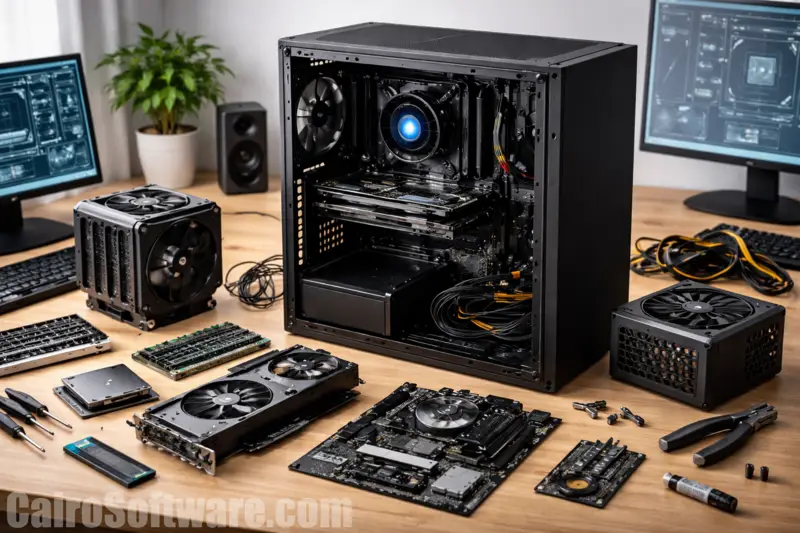
A computer feels mysterious until you stop treating it like a magic box. Most people in the United States use laptops, desktops, phones, printers, and routers every day, yet many still freeze when a device slows down or a spec sheet gets thrown in front of them. Computer Hardware Basics helps you see what is happening inside the machine, not so you can become a repair technician overnight, but so you can make smarter choices when buying, fixing, upgrading, or explaining technology.
That kind of understanding saves money. It also saves patience. A family choosing a school laptop in Ohio, a small business replacing office desktops in Texas, or a remote worker shopping for a monitor in Arizona all face the same problem: too many parts, too many numbers, and too much sales language. A clear grasp of hardware turns that noise into something useful. For broader tech visibility and digital growth ideas, many businesses also study trusted online publishing resources like technology brand building to better understand how digital tools support real work.
How Core Computer Parts Work Together
A computer is not one powerful part doing everything alone. It is a group of parts passing work back and forth at high speed, and each part has a different job. Once you see that teamwork, problems become easier to spot. A slow computer may not have a “bad computer” problem. It may have a storage, memory, heat, or software load problem.
Why the CPU Acts Like the Decision Center
The central processing unit, or CPU, handles the instructions that keep your computer moving. When you open a browser, edit a document, run payroll software, or join a video meeting, the CPU breaks those actions into tiny steps. It does not “think” like a person, but it does handle the math and logic that make your commands happen.
A common mistake is assuming the highest number always means the best CPU. That is not how real use works. A college student writing papers and streaming lectures does not need the same processor as a video editor in Los Angeles exporting 4K footage every night. Speed matters, but so do core count, power use, cooling, and the type of work you actually do.
The counterintuitive part is that many people buy more processor than they need, then ignore the parts that would make the computer feel faster. A midrange CPU paired with enough memory and a solid-state drive can feel better than a higher-end chip trapped inside a poorly balanced machine.
How Memory Keeps Active Work Moving
Random access memory, usually called RAM, holds the work your computer is using right now. It is not long-term storage. It is the short-term workspace where your open tabs, apps, files, and system tasks sit while you use them. More RAM gives the computer more room to keep active tasks ready.
That matters in normal American households more than people think. A parent may have a budgeting spreadsheet open, a browser with ten school tabs, a video call, and a photo folder running at the same time. If the computer has too little RAM, it starts leaning harder on storage, which makes everything feel slower.
More RAM is not always the answer, though. If your computer already has enough for your workload, adding more may bring little change. The real trick is balance. A basic home laptop may feel fine with 8GB for light use, while heavier multitasking often feels better with 16GB or more.
Computer Hardware Basics in Everyday Buying Decisions
Buying a computer gets easier when you stop chasing impressive labels and start matching parts to real habits. Retail pages love big numbers because big numbers sell. Your job is to ask a calmer question: will this machine handle what I actually do on an average Tuesday?
What Storage Type Changes About Daily Speed
Storage holds your files, apps, operating system, photos, downloads, and everything else that stays on the computer after it powers off. Older hard disk drives use spinning parts. Solid-state drives use flash memory with no moving disks, which makes them faster and more resistant to bumps.
The biggest daily speed jump many people notice comes from switching to a solid-state drive. A computer with an SSD can start faster, open apps faster, and wake from sleep with less delay. That is why a cheaper laptop with an SSD may feel sharper than an older desktop with a stronger processor but a slow hard drive.
Storage size still matters. A 256GB drive may work for a student who keeps most files in cloud storage. A family storing years of photos and videos may fill it fast. A good buying decision weighs both speed and space, instead of treating one number as the whole story.
Why Graphics Hardware Is Not Only for Gamers
Graphics hardware creates what you see on the screen. Some computers use integrated graphics built into the CPU. Others use a separate graphics card, often called a dedicated GPU. Gamers care about GPUs, but they are not the only ones who benefit from better graphics hardware.
A real estate agent editing listing videos, a YouTuber in Florida making short-form clips, or a designer working with large image files may all need stronger graphics performance. Even multiple high-resolution monitors can ask more from the graphics system than people expect.
The surprise is that many office users do not need a dedicated GPU at all. For email, spreadsheets, web apps, bookkeeping, video calls, and streaming, integrated graphics often work well. Buying a large graphics card for basic work can add cost, heat, and battery drain without making daily tasks feel much better.
The Physical Parts That Affect Comfort, Life Span, and Repairs
Performance numbers get most of the attention, but physical design shapes how a computer feels after months of use. Heat, battery health, ports, keyboard quality, screen type, and repair access matter because they affect comfort and long-term value. A fast machine that runs hot, has weak hinges, or lacks needed ports can become annoying fast.
How Cooling Protects Performance Over Time
Computers create heat because electricity moves through small parts at high speed. Cooling systems move that heat away through fans, vents, heat pipes, and metal surfaces. When cooling works well, the computer can keep running at steady speed. When heat builds up, performance drops to protect the parts.
This is why two computers with similar specs can behave differently. A thin laptop may look clean on a store shelf, but if it cannot release heat well, it may slow down during long calls, heavy browser use, or large file exports. A thicker business laptop may look less stylish yet work better under steady pressure.
Dust is another quiet problem. In homes with pets, carpet, or older HVAC systems, vents can clog over time. A computer that once felt fast may start sounding loud and acting sluggish because it is fighting heat, not because the main parts suddenly became weak.
Why Ports, Screens, and Keyboards Matter More Than Ads Suggest
Ports decide what you can connect without extra adapters. USB-C, USB-A, HDMI, Ethernet, headphone jacks, SD card slots, and charging ports all shape daily convenience. A teacher connecting to a classroom projector has different needs than a photographer moving files from a camera card.
Screens matter for comfort. A bright, sharp display helps if you work near windows or spend long hours reading. A weak screen can make even a powerful computer feel cheap. Keyboard and trackpad quality also matter because they are the parts your hands touch all day.
The overlooked truth is simple: a computer is not only a box of specs. It is a tool you physically use. A slightly slower laptop with a better keyboard, screen, battery, and port layout may serve you better than a faster model that frustrates you every morning.
Smarter Maintenance and Upgrade Choices
Good hardware knowledge helps after the purchase too. You do not need to open every computer or replace every part yourself. You do need to know which problems are worth fixing, which upgrades bring value, and when replacement makes more sense than repair.
When Upgrades Make Sense
Some upgrades can extend a computer’s life. Adding RAM, replacing an old hard drive with an SSD, installing a better Wi-Fi card, or adding external storage can make a practical difference. These upgrades often help older desktops and some business laptops more than sealed consumer laptops.
A small business in Chicago might keep office desktops longer by adding SSDs and memory instead of replacing every unit. That can be a smart move when the machines still handle the company’s software. Hardware choices should serve the budget, not feed a habit of replacing devices too early.
Still, upgrades have limits. If the processor is too old, the battery is failing, the screen is damaged, and the operating system no longer receives updates, pouring money into repairs may not be wise. A good rule is to compare repair cost against the value, age, and security future of the device.
How Basic Care Prevents Expensive Problems
Basic care sounds boring until it prevents a costly failure. Keep vents clear. Use a surge protector. Avoid eating over keyboards. Back up files before problems appear. Do not leave laptops baking in a parked car during a hot Arizona afternoon. Small habits protect expensive parts.
Battery care deserves attention too. Modern laptops are better than older models, but heat still hurts battery life. Keeping a device cool, using proper chargers, and avoiding constant physical stress on cables can help. Many charging problems begin with damaged ports or cheap replacement chargers.
The best maintenance mindset is not fear. It is awareness. When you understand Computer Hardware Basics, you notice warning signs earlier: louder fans, random shutdowns, slow boot times, swollen batteries, screen flicker, or clicking drives. Early action often costs less than emergency repair.
Conclusion
Technology rewards people who ask better questions. You do not need to memorize every chip model or argue about specs online. You need enough understanding to recognize what each part does, how those parts shape daily use, and when a sales pitch is pushing you toward power you may never use.
That is where Computer Hardware Basics becomes practical. It helps you buy with confidence, maintain devices with less stress, and explain problems clearly when you need support. A computer is easier to manage once it stops feeling like a sealed mystery and starts feeling like a set of connected parts with clear roles.
Before your next purchase or repair, write down what you actually do on your device each week. Then compare the hardware to those needs, not to the loudest number on the box. Choose the machine that fits your real life, and you will get more value from every dollar you spend.
Frequently Asked Questions
What are the most important computer hardware parts for beginners to understand?
Start with the CPU, RAM, storage, graphics hardware, motherboard, power supply, screen, ports, and cooling system. These parts explain most buying and troubleshooting decisions. Once you know what each one does, computer specs become easier to compare.
How much RAM does a home computer need for normal use?
Many home users can manage basic tasks with 8GB of RAM, especially for browsing, email, streaming, and document work. People who multitask heavily, use creative software, or keep many browser tabs open often feel better with 16GB.
Is an SSD better than a hard drive for everyday computing?
An SSD is usually better for everyday use because it starts faster, opens apps quicker, and has no spinning parts. A hard drive can still be useful for cheap bulk storage, but it feels slower when used as the main system drive.
Do I need a dedicated graphics card for office work?
Most office users do not need a dedicated graphics card. Integrated graphics usually handle email, spreadsheets, web apps, video calls, and streaming well. A dedicated GPU makes more sense for gaming, video editing, 3D work, or heavy creative tasks.
Why does my computer slow down when it gets hot?
Heat forces the computer to reduce performance so parts do not get damaged. This is called thermal throttling. Dust, blocked vents, weak fans, thin designs, or heavy workloads can all cause heat buildup and slower performance.
What computer specs should students look for first?
Students should focus on battery life, reliable storage, enough RAM, a comfortable keyboard, a clear screen, and strong Wi-Fi. A balanced laptop often helps more than an expensive processor, especially for writing, research, classes, and video meetings.
Is upgrading an old computer worth the cost?
An upgrade is worth it when the computer still supports current software and only has one weak point, such as slow storage or low memory. If several major parts are aging or failing, replacement may be the smarter long-term choice.
How can I make computer hardware last longer?
Keep the device cool, clean vents gently, use safe chargers, protect it from drops, avoid liquid spills, and back up files often. Pay attention to fan noise, battery swelling, random shutdowns, and slow startup because early warning signs can prevent bigger repairs.